
figma-context-mcp
byglips· 1 MCP server
<br/>
How to install figma-context-mcp?
glips/figma-context-mcp
$git clone https://github.com/glips/figma-context-mcpInstalls into the current project.
›Prefer a prompt? Paste this to your agent
Install figma-context-mcp by running `git clone https://github.com/glips/figma-context-mcp`, then use it for the current task and follow its documentation at https://github.com/glips/figma-context-mcp.
README.md
| 1 | <a href="https://www.framelink.ai/?utm_source=github&utm_medium=referral&utm_campaign=readme" target="_blank" rel="noopener"> |
| 2 | <picture> |
| 3 | <source media="(prefers-color-scheme: dark)" srcset="https://www.framelink.ai/github/HeaderDark.png" /> |
| 4 | <img alt="Framelink" src="https://www.framelink.ai/github/HeaderLight.png" /> |
| 5 | </picture> |
| 6 | </a> |
| 7 | |
| 8 | <div align="center"> |
| 9 | <h1>Framelink MCP for Figma</h1> |
| 10 | <h3>Give your coding agent access to your Figma data.<br/>Implement designs in any framework in one-shot.</h3> |
| 11 | <a href="https://npmcharts.com/compare/figma-developer-mcp?interval=30"> |
| 12 | <img alt="weekly downloads" src="https://img.shields.io/npm/dm/figma-developer-mcp.svg"> |
| 13 | </a> |
| 14 | <a href="https://github.com/GLips/Figma-Context-MCP/blob/main/LICENSE"> |
| 15 | <img alt="MIT License" src="https://img.shields.io/github/license/GLips/Figma-Context-MCP" /> |
| 16 | </a> |
| 17 | <a href="https://framelink.ai/discord"> |
| 18 | <img alt="Discord" src="https://img.shields.io/discord/1352337336913887343?color=7389D8&label&logo=discord&logoColor=ffffff" /> |
| 19 | </a> |
| 20 | <br /> |
| 21 | <a href="https://twitter.com/glipsman"> |
| 22 | <img alt="Twitter" src="https://img.shields.io/twitter/url?url=https%3A%2F%2Fx.com%2Fglipsman&label=%40glipsman" /> |
| 23 | </a> |
| 24 | </div> |
| 25 | |
| 26 | <br/> |
| 27 | |
| 28 | Give [Cursor](https://cursor.sh/) and other AI-powered coding tools access to your Figma files with this [Model Context Protocol](https://modelcontextprotocol.io/introduction) server. |
| 29 | |
| 30 | When Cursor has access to Figma design data, it's **way** better at one-shotting designs accurately than alternative approaches like pasting screenshots. |
| 31 | |
| 32 | <h3><a href="https://www.framelink.ai/docs/quickstart?utm_source=github&utm_medium=referral&utm_campaign=readme">See quickstart instructions →</a></h3> |
| 33 | |
| 34 | ## Demo |
| 35 | |
| 36 | [Watch a demo of building a UI in Cursor with Figma design data](https://youtu.be/6G9yb-LrEqg) |
| 37 | |
| 38 | [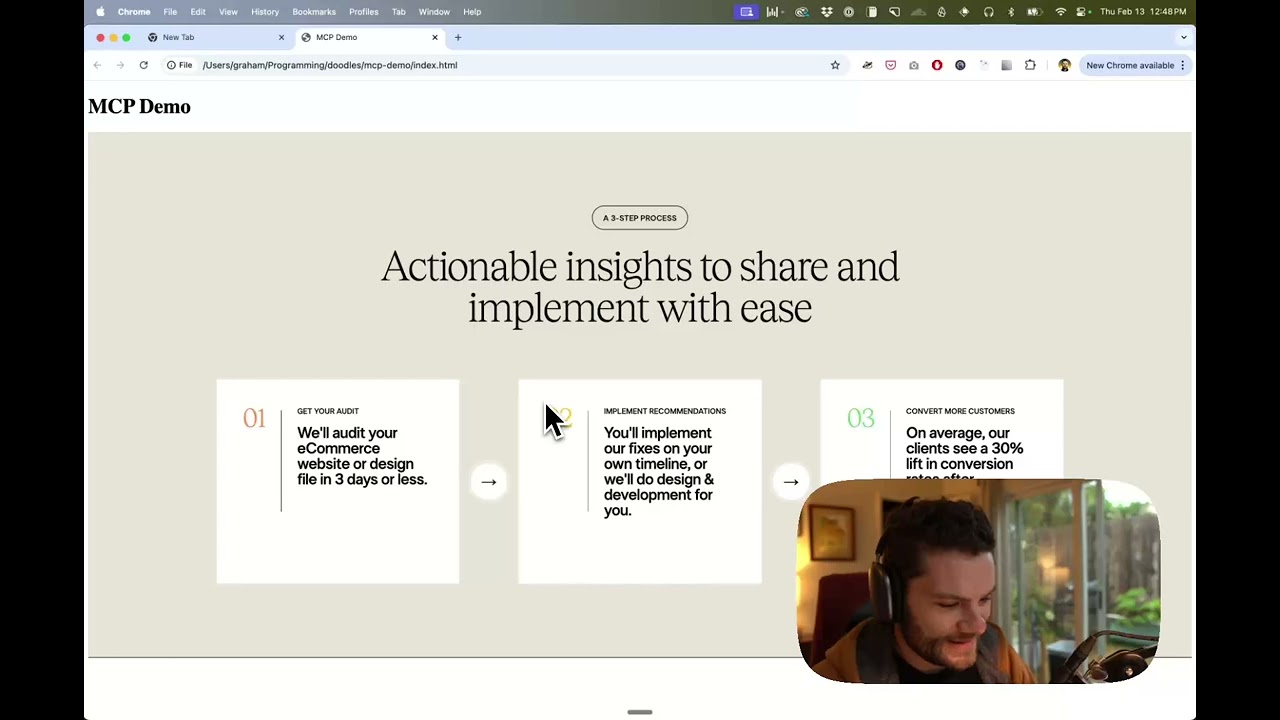](https://youtu.be/6G9yb-LrEqg) |
| 39 | |
| 40 | ## How it works |
| 41 | |
| 42 | 1. Open your IDE's chat (e.g. agent mode in Cursor). |
| 43 | 2. Paste a link to a Figma file, frame, or group. |
| 44 | 3. Ask Cursor to do something with the Figma file—e.g. implement the design. |
| 45 | 4. Cursor will fetch the relevant metadata from Figma and use it to write your code. |
| 46 | |
| 47 | This MCP server is specifically designed for use with Cursor. Before responding with context from the [Figma API](https://www.figma.com/developers/api), it simplifies and translates the response so only the most relevant layout and styling information is provided to the model. |
| 48 | |
| 49 | Reducing the amount of context provided to the model helps make the AI more accurate and the responses more relevant. |
| 50 | |
| 51 | ## Getting Started |
| 52 | |
| 53 | Many code editors and other AI clients use a configuration file to manage MCP servers. |
| 54 | |
| 55 | The `figma-developer-mcp` server can be configured by adding the following to your configuration file. |
| 56 | |
| 57 | > NOTE: You will need to create a Figma access token to use this server. Instructions on how to create a Figma API access token can be found [here](https://help.figma.com/hc/en-us/articles/8085703771159-Manage-personal-access-tokens). |
| 58 | |
| 59 | ### MacOS / Linux |
| 60 | |
| 61 | ```json |
| 62 | { |
| 63 | "mcpServers": { |
| 64 | "Framelink MCP for Figma": { |
| 65 | "command": "npx", |
| 66 | "args": ["-y", "figma-developer-mcp", "--figma-api-key=YOUR-KEY", "--stdio"] |
| 67 | } |
| 68 | } |
| 69 | } |
| 70 | ``` |
| 71 | |
| 72 | ### Windows |
| 73 | |
| 74 | ```json |
| 75 | { |
| 76 | "mcpServers": { |
| 77 | "Framelink MCP for Figma": { |
| 78 | "command": "cmd", |
| 79 | "args": ["/c", "npx", "-y", "figma-developer-mcp", "--figma-api-key=YOUR-KEY", "--stdio"] |
| 80 | } |
| 81 | } |
| 82 | } |
| 83 | ``` |
| 84 | |
| 85 | Or you can set `FIGMA_API_KEY` and `PORT` in the `env` field. |
| 86 | |
| 87 | If you need more information on how to configure the Framelink MCP for Figma, see the [Framelink docs](https://www.framelink.ai/docs/quickstart?utm_source=github&utm_medium=referral&utm_campaign=readme). |
| 88 | |
| 89 | ## Star History |
| 90 | |
| 91 | <a href="https://star-history.com/#GLips/Figma-Context-MCP"><img src="https://api.star-history.com/svg?repos=GLips/Figma-Context-MCP&type=Date" alt="Star History Chart" width="600" /></a> |
| 92 | |
| 93 | ## Learn More |
| 94 | |
| 95 | The Framelink M |
Related
6 picksType
- sunnysidefigma-context-mcpModel Context Protocol server for Figma integrationApr 2026
- figma-console-mcpThe most comprehensive MCP server for Figma — design tokens, variables, components, write tools, version history diff, accessibility audits, FigJam, Slides, and more. Local (WebSocket Desktop Bridge plugin) and Cloudflare Workers (paired + remote) modes.Jul 2026
- freecad-mcpFreeCAD MCP(Model Context Protocol) serverJul 2026
- dembrandtExtract design tokens and publicly visible CSS information from any websiteJul 2026
- touchdesigner-mcpMCP server for TouchDesigner - Control and operate TouchDesigner projects through AI agentsJul 2026
- cursor-talk-to-figma-mcpCursor Talk to Figma MCPJul 2026


